Graphics & latency tweaking
The Revived game contains several modifications in graphics than the Original Game (OG). This guide shows you how to set graphics options to our recommendations.
Revived Setup
If you open the Revived Setup app from the Start menu, you can select from our recommended presets for different use cases.
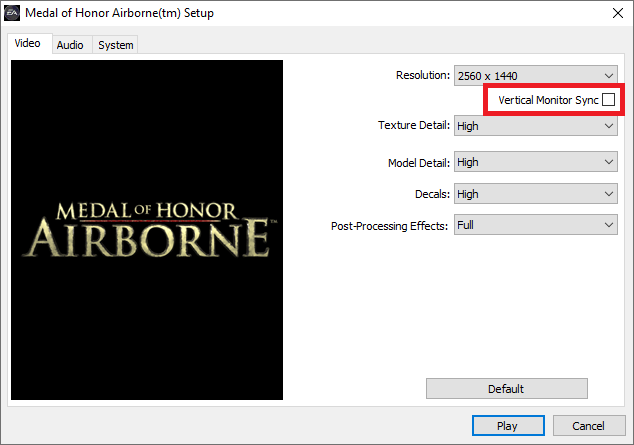
Highest graphics settings
Select your desired resolution, turn off Vertical Monitor Sync (a.k.a. VSync, it causes horrible latency), and select all the highest settings.
WARNING: Revived Setup will not remember your settings. So if you start it again, it will reset the selections to the defaults recommended by OG (which we don't recommend).
Competitive recommendations
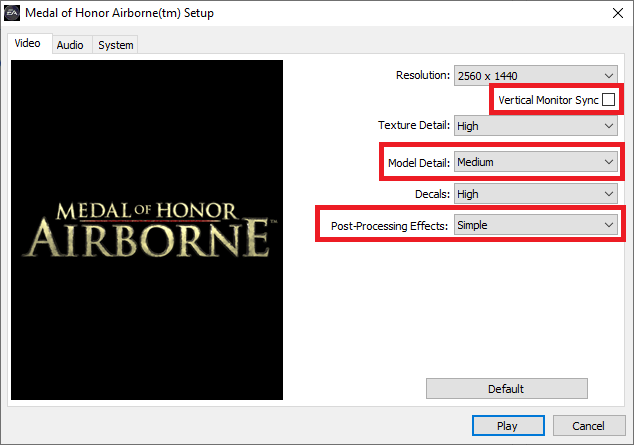
Select these presets to optimize for competitive playability (i.e. removing visual obstructions). These change the following settings compared to Highest:
- Slightly reduced render distance to reduce CPU load spikes
- Slightly reduced smoke, to make aiming easier (via reducing muzzle smoke too)
- Removing scope blur (when only focused parts of the scope are sharp), making the entire scope sharp
- Reducing some decorations (like ivy on walls) that don't stop bullets but obstruct view
Manual tweaking
If you want to tweak these settings manually, select the Highest preset for now, and read our tweaking guide below.
NVidia Control Panel
As you may have noticed in the Revived Setup, there is no antialiasing support in the game by default. You can force the game to use antialiasing using NVidia Control Panel.
There are a few other options that we strongly recommend to reduce the overall latency of the game.
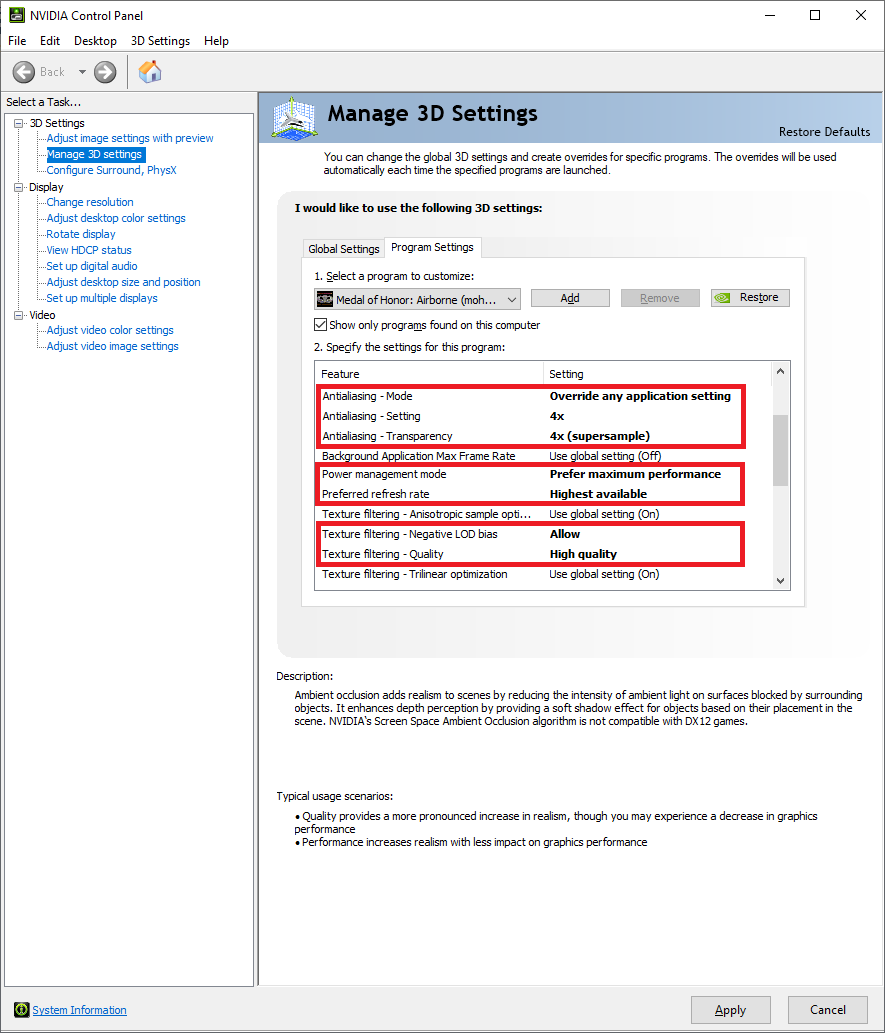
Set these to get much higher visual quality.
For those two antialiasing options, we recommend setting 4x, all gaming GPUs since the release of Revived should be able to handle that.
If you have a weaker but capable graphics card, setting 2x already gives decent quality.
Setting anything above 4x gives no real benefits, other than making your graphics card heating your room more.
Set these to improve the latency of the game:
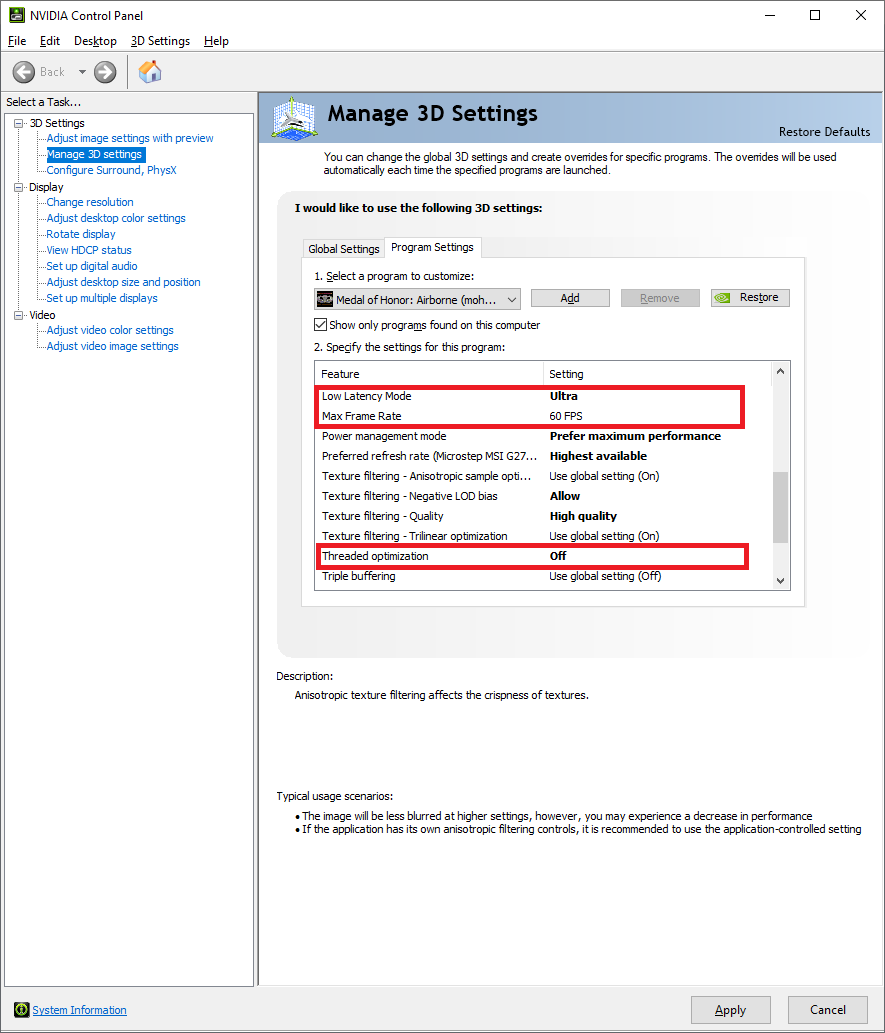
If you play multiplayer, we recommend setting Max Frame Rate to 60 (or 64, if you use Windows 7) because the game itself maximizes your FPS in multiplayer to 60 anyway. This way, single player and multiplayer gives you a uniform experience (and physics).
Changes will take effect the first time you start/restart the game.
NVidia Profile Inspector
To tweak even more options than what NVidia Control Panel allows, we recommend using NVidia Profile Inspector.
After downloading and unzipping, open NVidia Profile Inspector. We recommend importing this profile called dato.nip that is optimized for minimized latency across several games. This changes your *Base Profile*, so if you encounter any issues, you have to revert that, not just the game specific profiles.
Click that little down arrow, and *Import profile*. Then browse the dato.nip from above.
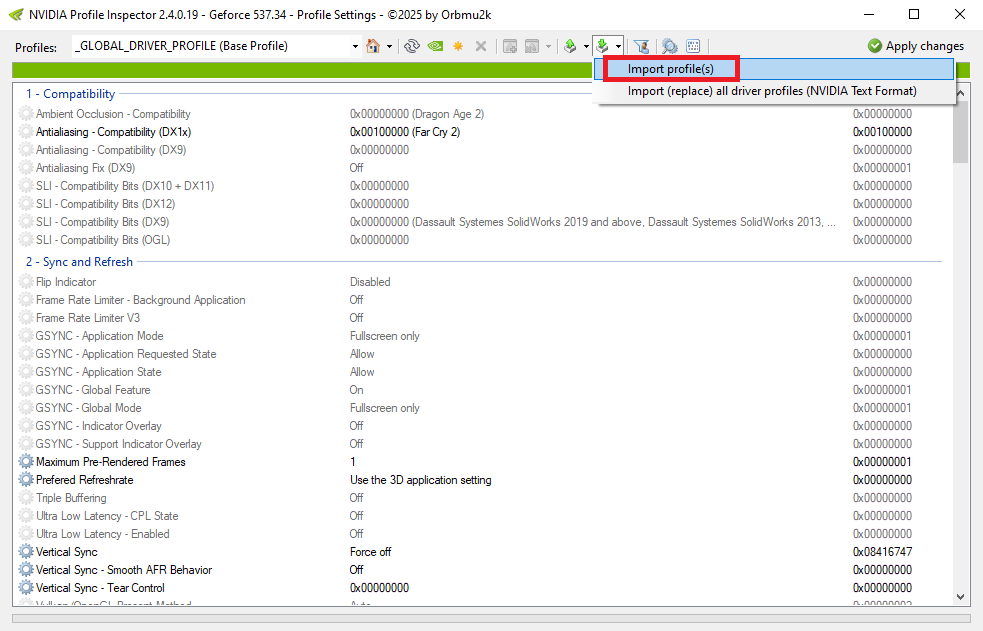
Then choose the game specific profile in the top of the window (see picture below), and set these options:
- Maximum Pre-Rendered Frames: 1
- Ultra Low Latency - CPL State: Ultra
- Ultra Low Latency - Enabled: On
To increase visual quality, you can set a few more options here:
- Sharpening - Ignore Film Grain: 0.00
- Sharpening - Value: 0.30
- Texture Filtering - LOD Bias (DX): -2.6 (or so)
- Texture Filtering - Negative LOD Bias: Allow
Changes will take effect the first time you start/restart the game.
Setting individual graphics options
Most graphics options are found in the game config file MOHASettings.ini that you can find in the *Documents → EA Games → Medal of Honor Airborne(tm) → Config* folder.
There are a few exceptions to that rule, scattered all around:
- Setting the default FOV is done using input tricks. Check the input tweaking guide for that.
- Sprint Effects (a weird, trippy effect that widens your FOV while sprinting) is turned off by default in Revived. It's only available only from the in-game main menu *→ Options → Gameplay*.
- Music: we recommend setting main menu *→ Options → Audio/Video → Music Volume* to just above minimum. This helps in multiplayer as normally a music is played when the round is over.
- Brightness: we recommend setting *Options → Audio/Video → Brightness* to just below maximum. Note that if you set it to exactly maximum, the game behaves like you set it to the middle (hence, set slightly below maximum).
To tweak anything else, you have to edit the MOHASettings.ini mentioned above.
First exit the game, then edit the file using Notepad or the text editor of your choice. Look for the lines above, and tweak the values. These are the values worth tweaking:
CullDistanceBiasBase: This is the render distance coefficient. If you make this smaller, the game engine will render less objects by cutting smaller, distant objects. The OG had this set to 1 on highest setting, 10 gives a decent improvement, but nothing above 30 does any further improvements sadly.
bAllowMotionBlur: Enable motion blur. For clear visuals, we disabled this for all graphic presets. Change the value to True to turn it back on.
bAllowDepthOfField: Scope blur (when only focused parts of the scope are sharp). We recommend setting this to False to make the entire scope sharp.
bMinspecCull: Some decorations (like ivy on walls) that don't stop bullets but obstruct view. We recommend setting this to False.
bPostFX: Post-processing visual effects, e.g. making the screen red when you are being hit. Some players set this to False for even less visual disturbance.
Smoke related options: It's possible to play with these variables to reduce smoke rendering: MaxParticlesAllowed, ParticleCullExemptDistance, ParticleLODBias. The results will be hugely map-dependent, so it's tricky to find values where muzzle flash and regular smoke disappears, but grenade explosions are still visible.
PC_PlayerName: If you use the "Remember Me" feature of the multiplayer log-in, you can change your playername here to values (special characters, etc.) that the game otherwise wouldn't let you.